 quiki.io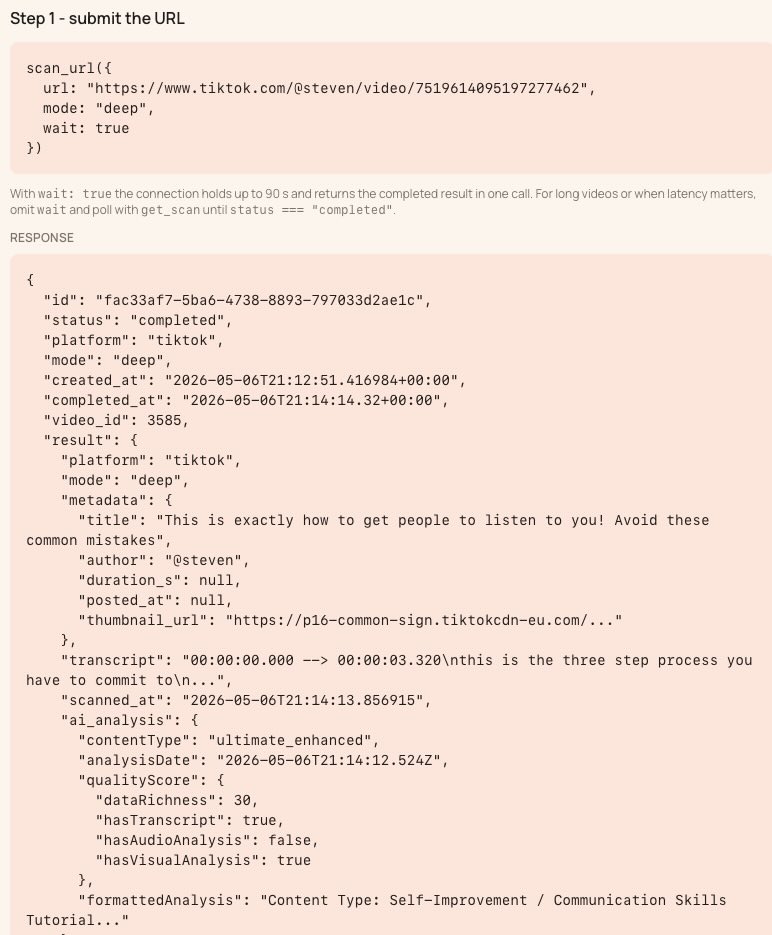
Your AI agent can now search and organize your Quiki library
Six new MCP tools let your AI agent search your saved videos, organize them into folders and find past imports. Searching and organizing never use credits.
When we introduced the Quiki MCP server, your AI agent could scan links and read your newest videos. That was useful, but it had a blind spot: the agent could only see the 100 most recent videos in your library. If the recipe you wanted was saved in March, it was out of reach.
That changes today. The Quiki MCP server now has 14 tools, up from 8. Your agent can search your whole library, organize videos into folders, page through everything you have saved, and find bulk imports you started earlier. Searching and organizing never use credits.
What is new
Search your whole library. The new search_videos tool runs the same search as the Quiki web app. It looks through titles, descriptions, hashtags, authors, AI summaries, your notes, transcripts and the detailed analysis. It understands the same search language too:
"exact phrase"to match words in order-wordto leave out videos that mention somethingpasta OR risottoto match eitherplatform:tiktok,author:name,folder:"Recipes",folder:unfiledandhas:transcriptto narrow results
Each result tells your agent where the match was found, for example in the transcript or the summary, so it can pick the right video without opening every one.
Organize with folders. Four tools give your agent the same folders you see in the app:
list_foldersshows your folders and how many videos each one holds.list_folder_videoslists what is inside a folder, or everything not yet in a folder.create_foldermakes a new folder. If one with the same name already exists, it uses that one instead of making a copy.add_to_folderfiles videos into a folder. A video lives in one folder at a time, so if a video is already in another folder, Quiki leaves it there and tells your agent. The agent can then move it on purpose.
See everything, page by page. list_recent_videos now pages through your whole library instead of stopping at 100, and search results page the same way.
Find past imports. list_bulk_imports lists the bulk imports you have started, newest first. If your agent loses track of an import, it can find it again and check its progress.
Read only what you need. get_video can now return just the parts you ask for, such as the summary on its own. Long YouTube transcripts no longer fill up your agent's memory when all it needed was a two-line summary. Every video also now includes its original link, so your agent can point you straight back to it.
Know your balance. whoami now shows your credit balance, so your agent can check what it can spend before it starts a scan or a big import.
Fewer approval prompts. Every tool now tells your agent app whether it only reads or can change something. Apps like Claude Desktop and Claude Code can use that to approve safe, read-only calls without asking you each time. The tools that scan or move videos still ask.
Five things to try
1. "Find that video." Ask: "Search my Quiki library for the video about sourdough starters and give me the steps." The agent calls search_videos, then get_video on the best match for the transcript and summary.
2. Tidy up what is unfiled. Ask: "List my unfiled Quiki videos from this week and file the cooking ones into my Recipes folder." The agent calls list_folder_videos with unfiled, decides which ones fit, and calls add_to_folder.
3. Build a folder from a topic. Ask: "Create a folder called Spanish practice and add every video I saved about learning Spanish." The agent runs create_folder, pages through search_videos until there are no more results, and files them all.
4. A study guide from one folder. Ask: "Read the summaries of everything in my Workouts folder and turn them into a weekly plan." With fields set to summary only, the agent can read a whole folder quickly.
5. Check before you spend. Ask: "How many credits do I have, and is it enough to import this list?" The agent calls whoami for your balance, then bulk_import_estimate for the exact cost.
What it costs
Searching, listing, reading and organizing your library never use credits. Only scans and bulk imports do, from the same balance as the app, and the MCP page lists the cost of each scan mode. Searches are limited to 30 a minute per key, which is far more than an agent needs in normal use.
The library tools are part of PRO, which you get with any credit pack. See pricing.
How to update
If you set up Quiki with npx -y @quiki/mcp, restart your agent app and it will pick up the new version on its own. In Claude Code you can also run /mcp and reconnect the Quiki server. New to it? Follow the setup on the MCP page: create a key under Account > API keys, paste the config into your agent, and ask what you saved this week.
For more ideas, read Quiki and your AI agent: five practical MCP workflows. Still have a backlog to bring in first? See Import your whole library.
Your saved videos miss you. Go find them.
Join the creators, marketers, and agencies using Quiki.io to organize their video hoard.