 quiki.io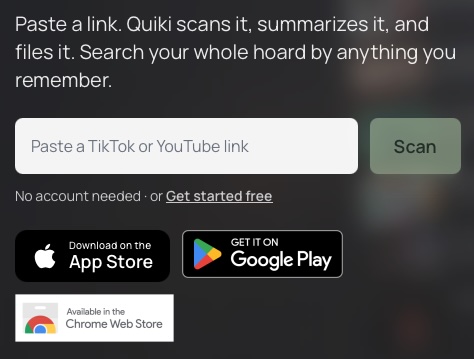
Small Quiki updates you might have missed this autumn
Not every Quiki update gets its own post. Here are the smaller ones from this autumn: a free scan before you sign up, a guide for copying the right link, a quieter dashboard, and a clean way to start your library over.
Not every Quiki update gets its own post, but the small ones add up. This roundup covers the recent Quiki updates that change how the app feels day to day: a scan you can try before signing up, a guide for when a link will not work, a quieter dashboard, and a clean way to start your library over.
Most came from watching where people got stuck: a link does not work, they paste it again, and they leave.
Try a scan before you sign up
You no longer need an account to see what Quiki does. Paste a TikTok or YouTube link into the box on the homepage and Quiki reads the video and shows you a summary right there.
- Keep it: click Get started free and the video is saved to your new library, already filed into a folder.
- Not ready yet? Click Email me this summary. We send it now and one reminder the next day if you have not signed up. Nothing else.
- Instagram: Instagram scans run through a paid step, so an Instagram link shows an example scanned Reel instead.
You can try up to three scans a day this way.
"Show me how" when a link will not work
The most common mistake by far is pasting a creator's profile instead of a video. It is easy to do: sharing from a profile page copies the account, not a video.
Now, when you paste a profile or channel link, Quiki tells you ("That is a profile, not a video") and opens a short Show me how guide with screenshots for TikTok, Instagram and YouTube: open the video itself, tap Share, tap Copy link. The guide opens by itself, and the Show me how button reopens it. It works in the homepage paste box and on the scan page inside your account. For every way to get a video in, see how to save videos to Quiki in one tap.
A welcome that matches what you came for
New accounts start with a few example videos so the library is never empty. Those examples now match where you came from: arrive from an Instagram page and you see Reels, from a YouTube page and you see YouTube videos. Examples carry a small Example label so you can tell them apart from your own.
A short What brings you here? step then asks whether you have a backlog of saved videos or are just trying it out, and points you to the right next step. Until you add a video of your own, an Add your first video card at the top of the dashboard lets you paste a link straight in.
Today's pick is now optional
The daily pick, a video from your library shown at the top of your dashboard each day, is now off by default to keep the dashboard clear. If you liked it, turn it back on in your account settings under Appearance: tick Show today's pick on my dashboard.
Clear my library
Want a fresh start without deleting your account? Clear my library is in your account settings under Danger zone.
- What goes: every video in your library, with its analysis and transcript.
- What stays: your account, credits, purchases and folders.
- Optional: tick Also clear my import history to clear that too.
- Worth knowing: credits already spent are not refunded, and the example videos are added back.
You type CLEAR to confirm, because it cannot be undone. If an import or scan is still running, wait for it to finish (or cancel it) first. On iPhone or Android, sign in on quiki.io to use it. To remove just a few videos, use Select on the dashboard instead, covered in Import your whole library.
A few more fixes
- YouTube transcripts in the right language: transcripts now come back in the video's own language. Before, some arrived in a different one, which also hurt search.
- Clearer daily limit: your daily scan allowance resets at midnight UK time, and the app now says so. It used to say UTC, which is an hour off in summer.
Why we built it
None of these are headline features. They are the small fixes that decide whether someone gets their first video in or gives up after two tries.
Try it now
Paste a link into the box on the homepage, or if you already have an account, open your account settings and pick how you want your dashboard to look. New here? Start with how to use Quiki.
Your saved videos miss you. Go find them.
Join the creators, marketers, and agencies using Quiki.io to organize their video hoard.