 quiki.io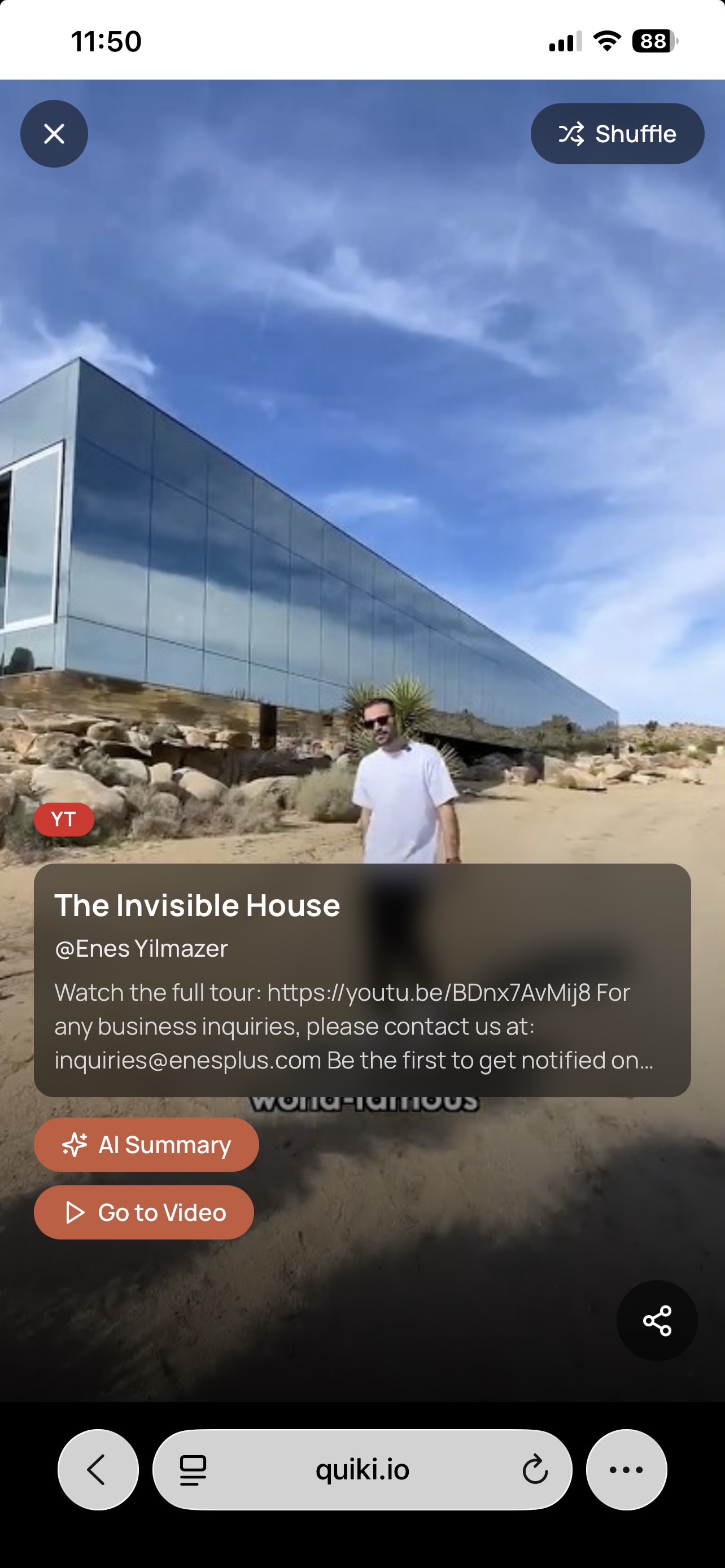
Introducing Swipe Mode: Rediscover Your Saved Videos, One Swipe at a Time
Swipe Mode turns your Quiki library into a full-screen, swipeable feed of your own saved videos. Rediscover what you saved, pull up an AI summary on demand, and jump straight to any video.
We all do it. You spot a great recipe, a workout, a how-to, or a clip you swear you'll come back to, so you save it. Then it vanishes into the pile with the hundreds of other things you saved and never looked at again.
Quiki already fixes the hard part: it pulls in your saved videos from TikTok, Instagram, and YouTube, analyzes them, and keeps them searchable and organized in one place. Today we're adding the fun part.
Meet Swipe Mode.
Scroll your own library like a feed
Swipe Mode turns your Quiki library into a full-screen, vertical feed of videos you have actually saved. It feels exactly like the short-form apps you already know: one video fills the screen, you swipe up, and the next one snaps into place. The difference is that every single video in the feed is one of yours.
It is the most enjoyable way we've found to rediscover what's already in your collection. Instead of hunting through a grid, you just lean back and scroll your own greatest hits.
How to turn it on
Swipe Mode lives right on your dashboard. Next to your folders you'll see a new Grid / Swipe toggle. Tap Swipe and your library opens as a full-screen feed. Tap Grid any time to go back to the classic view. Whatever folder you're in carries over, so you can swipe through a single collection or your whole library.
Built for rediscovery, not just scrolling
Swiping is the hook, but Swipe Mode is packed with the things that make Quiki useful:
- AI Summary on demand. Tap the AI Summary pill on any card and Quiki surfaces the key points of that video right there, so you can decide if it's worth your time without leaving the feed.
- Go to Video. Want the full picture? The Go to Video button takes you straight to that video's detail page, with its transcript, deep analysis, and notes.
- Share in a tap. Found something a friend needs to see? The share menu lets you copy the original link or send it on in seconds.
- Shuffle. Tap Shuffle to randomize the feed and resurface older saves you'd completely forgotten about. Tap it again to go back to newest-first. It is genuinely the best way to stumble onto that thing you saved three months ago.
Why we built it
The whole point of saving a video is to come back to it. Most of us never do, because the tools make rediscovery feel like a chore. Swipe Mode flips that. It takes the format that got you to save these videos in the first place and points it at your own collection, so going back through your saves feels less like admin and more like scrolling for fun.
Your hoard finally has a home worth visiting.
Try it now
Open your Quiki dashboard, tap the Swipe toggle, and start scrolling your own library. If you haven't saved much yet, run a quick scan or a bulk import first, then come back and swipe through everything you just brought in.
Happy swiping.
Your saved videos miss you. Go find them.
Join the creators, marketers, and agencies using Quiki.io to organize their video hoard.